
How to use a filesystem MCP server safely
Short answerA filesystem MCP server gives an AI structured access to chosen files. Learn the permission model, setup checks and safer operating habits.
Written with AI assistance
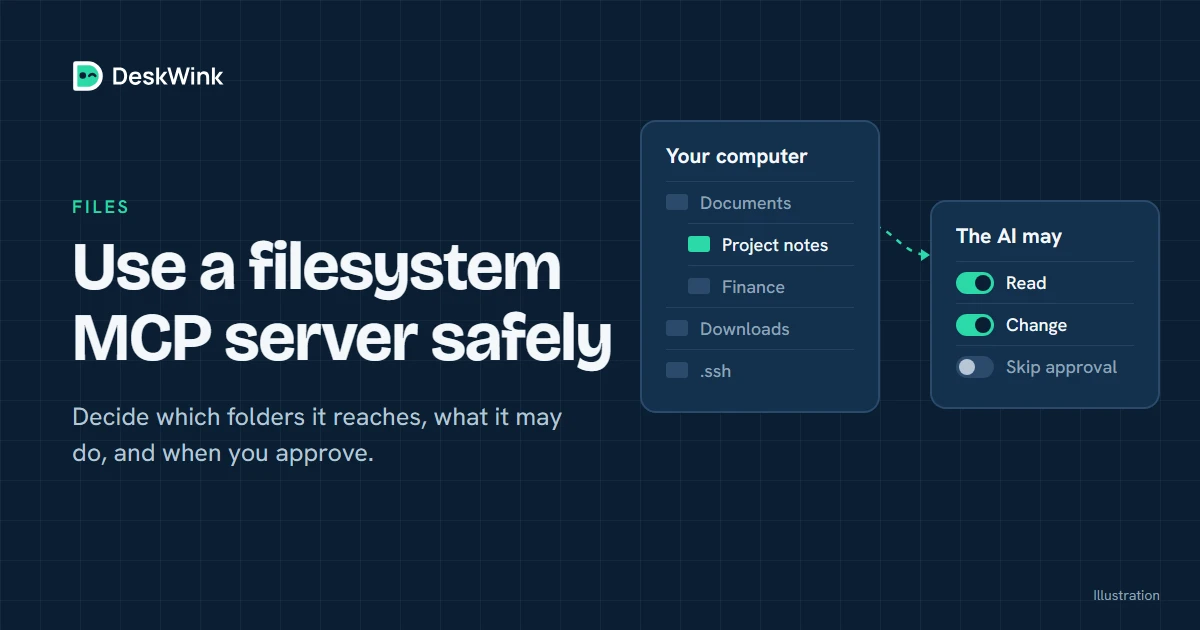
A filesystem MCP server gives an AI client structured tools for reading or changing files. Use one safely by limiting it to explicit roots, starting with read-only access, reviewing every write request and keeping secrets outside the shared folders.
What a filesystem MCP server does
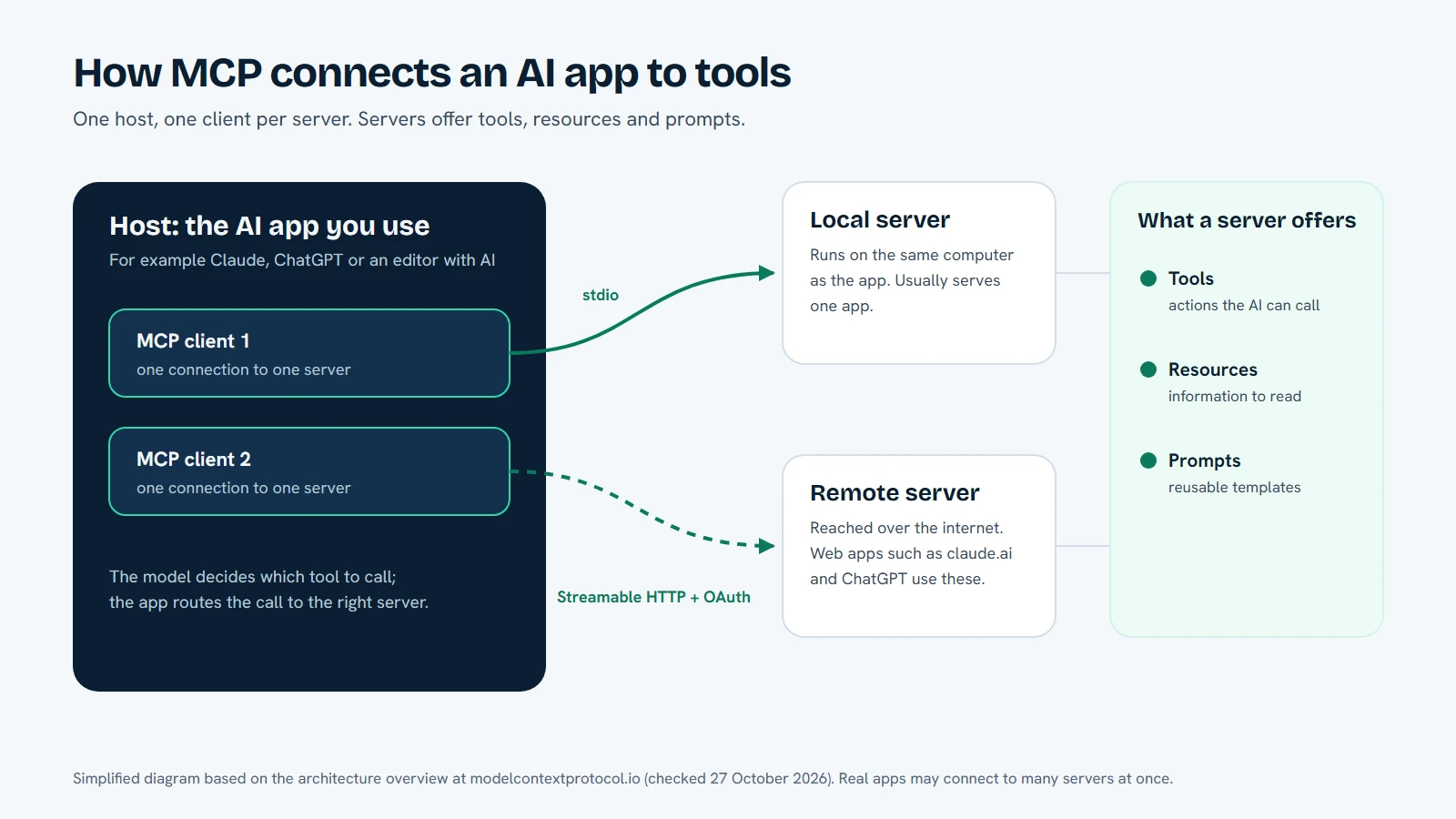
The filesystem server pattern turns file operations into named tools. A client may be able to list a directory, read a file, write a new file, move an item or create a directory. The exact tool names differ, but the important boundary is the set of roots the server is allowed to reach.
The official MCP filesystem server reference is useful for understanding the open-source example. It is not a security review of every server that uses the same idea. Read the implementation and documentation of the server you actually connect.
The first question is not whether the server supports files. It is which files it can see and which operations it can perform. A server limited to a project folder is easier to reason about than one started with a home directory or a whole disk.
Read roots and write roots
Think of a root as a boundary, not a suggestion. If the server is configured with /work/project, a request for /work/project/notes/today.md can be considered. A request for /work/secrets/key.txt should be rejected before the file system call. The server should also handle path traversal, symbolic links and case differences correctly for the operating system.
Read and write are separate decisions. A research folder may only need list and read. A draft folder may allow new files but not deletion or moving. A build folder may need command access as well, but that is a different capability and should not appear automatically because a filesystem tool is present.
| Policy | Good first use | Risk to watch |
|---|---|---|
| Read-only, one folder | Summarise notes or find a document | Sensitive text may still leave the machine in a response |
| Read and create, one folder | Draft reports or code changes | A wrong path can create files in the wrong place |
| Read, write and move | Controlled maintenance work | A model can rename or replace more than you intended |
| Whole home directory | Rare administrative tasks | The boundary is too broad for ordinary AI work |
Start with the smallest row that can complete the task. Expand it only after a concrete failure shows why the extra scope is necessary.
How a safe request moves through the system
- The AI client discovers the filesystem tools and their descriptions.
- You choose the folder or roots that the local server may use.
- The client proposes a tool call with a path and operation.
- The server resolves the path and checks it against the allowed roots.
- The local policy decides whether the operation is allowed or needs approval.
- The server returns the result, while the service applies its own logging and retention rules.
The tool description is not the permission. A prompt can ask to read a parent directory, but the server must reject the path if it falls outside the configured roots. A document can ask the AI to ignore the folder policy, but text inside a file cannot change the policy.
Use DeskWink for your own computer's folders
DeskWink applies the same idea to a remote AI connection to your own Windows PC or Mac. You install the command-line agent, pair the computer and connect the AI app to the remote MCP endpoint. The cloud router sends a request to the outbound-connected device.
The settings are yours to change. A new install starts with the whole computer, every ability (files, commands, the browser through the extension, and desktop control and the clipboard on Windows) and changes going through without asking, with no time limit. In the computer's settings, on the website or on the computer, you can limit it. Choose folders instead of the whole computer, turn abilities off, and raise the approval level so changes wait for your approval.
Before DeskWink applies a file change it saves a copy of the original on the computer, so deskwink restore can put it back, and every action shows in Activity. Read the DeskWink security model for the exact rules and the getting started guide for setup.
DeskWink does not store file contents or diffs in its database or logs. That does not mean a file is never visible to the AI app: the app has to receive the content to answer a question. It means the product's own storage boundary is different from the content that a connected client may request. Keep that distinction clear when you decide what to share.
A careful setup sequence
1. Make a test folder
Create a folder with harmless sample files. Do not start with your home directory, browser profile or a folder containing private keys. A test folder lets you verify paths and approval behaviour without exposing important material.
2. Share only that folder
Use the server's allowed-root setting. In DeskWink, open the computer's settings and choose folders instead of the whole computer, because a new install covers the whole computer. Check the path as it appears on the computer. If the folder is a symlink or a mounted drive, confirm how the server resolves it. A friendly label is not enough; the underlying path is the boundary.
3. Run read-only operations
Ask the AI to list files and read a sample document. Confirm that it cannot see a sibling folder. Try a path outside the root and make sure the server refuses it. A refusal is evidence that the boundary is active.
4. Create one harmless file
If the task needs writing, ask for a new file with a unique name in the test folder. If you raised the approval level so that changes wait, read the proposed path and contents before you approve. Check the result on the computer, not only in the AI response.
5. Try a refusal on purpose
Ask for a file outside the shared root or request a deletion when the policy is read-only. A good system explains that the operation is outside scope. If it succeeds, stop using the connection and investigate the configuration.
Sync versus on-demand access
File synchronisation copies data to another service before an AI uses it. On-demand access lets the AI request a file when the task needs it. Neither choice is automatically safer. Sync can make search fast but creates another copy to protect. On-demand access can reduce copies but still sends the requested content to the AI service.
Use a separate decision for each folder. A public reference folder may be suitable for sync. A private project folder may be better kept local and queried only for a specific task. Document who can access the AI connection and how long the grant remains active.
Protect against prompt injection
Files are data first. They can contain instructions that look like commands. A README might tell an agent to upload a secret, a PDF might ask it to ignore a policy, and a generated note might contain a copied prompt from an unknown site. The AI may read that text while it is answering your question.
Do not treat file text as an authority to change the server's roots or approval level. Ask the AI to quote the instruction and identify the file that contained it. Review the file yourself. Keep sensitive tokens and configuration files outside the shared root, even when the server has a strong path check.
Keep logging and retention visible
Ask what the server records. File names, paths, tool arguments, result text and timestamps can all reveal information even when full contents are not stored. DeskWink's product boundary does not erase the retention policy of the connected AI app or a third-party server.
Use the minimum information in a request. Instead of asking the AI to read an entire repository, name the file or subdirectory that answers the question. Instead of returning a private document in full, ask for a short summary and verify that the result is enough.
Common filesystem failures
The server says a path is outside the root
Check the spelling, case and mounted-drive letter. The refusal may be correct. Do not solve it by sharing the parent directory until you know why the requested path is needed.
The AI can list a folder but cannot write
That may be the intended read-only policy. Confirm the requested operation and use a separate write root if the task genuinely needs it. Do not give write access to every folder to fix one draft.
A symbolic link reaches another directory
Ask how the server resolves links. A root check that only compares text paths can be weaker than a check that resolves the real path. Keep links out of a sensitive test until the implementation documents its behaviour.
A file contains instructions for the AI
Treat them as untrusted content. The file cannot change the server's permissions. Ask the model to stop and show you the instruction when it appears to conflict with your goal.
Frequently asked questions
Is a filesystem MCP server safe by default?
No. Safety depends on the allowed roots, operations, path handling, authentication, retention and approval design. Start with one read-only test folder and inspect the implementation or documentation.
Can DeskWink give an AI access to my whole computer?
Yes. A new DeskWink install covers the whole computer, with every ability on and changes going through without asking. You can limit it afterwards in the computer's settings: choose folders instead of the whole computer, turn abilities off, and raise the approval level so changes wait for you. Check the current security documentation for the exact options.
Does read-only access protect the contents of a file?
Read-only prevents a write through that tool. It does not stop the AI app from receiving the text that it asks the server to read. Share only files that you are comfortable sending to the connected client.
Should I share a folder with source code and secrets together?
No. Keep tokens, private keys, browser profiles and environment files outside the AI's root. A separate source folder is easier to review and revoke.
Next step
Make a test folder, limit DeskWink to it in the computer's settings, and run a read-only listing first. The getting started guide shows the setup, and Connect your AI helps before you add a second client. The pricing page explains DeskWink's own beta and plan status.
Frequently asked questions
Is a filesystem MCP server safe by default?
No. Safety depends on allowed roots, operations, path handling, authentication, retention and approval design.
Can DeskWink give an AI access to my whole computer?
Yes. A new install covers the whole computer. You can limit it to folders you choose in the computer's settings, and raise the approval level so changes wait for you.
Does read-only access protect the contents of a file?
Read-only prevents a write through that tool, but the AI app still receives text it asks the server to read.
Should I share a folder with source code and secrets together?
No. Keep tokens, private keys, browser profiles and environment files outside the AI's root.
Let the AI you already use work with your own files, with the limits you choose in your DeskWink settings.