
How to add an MCP server to ChatGPT
Short answerLearn how ChatGPT connects to a remote MCP server, what you need to check first, and how you can limit what DeskWink reaches.
Written with AI assistance
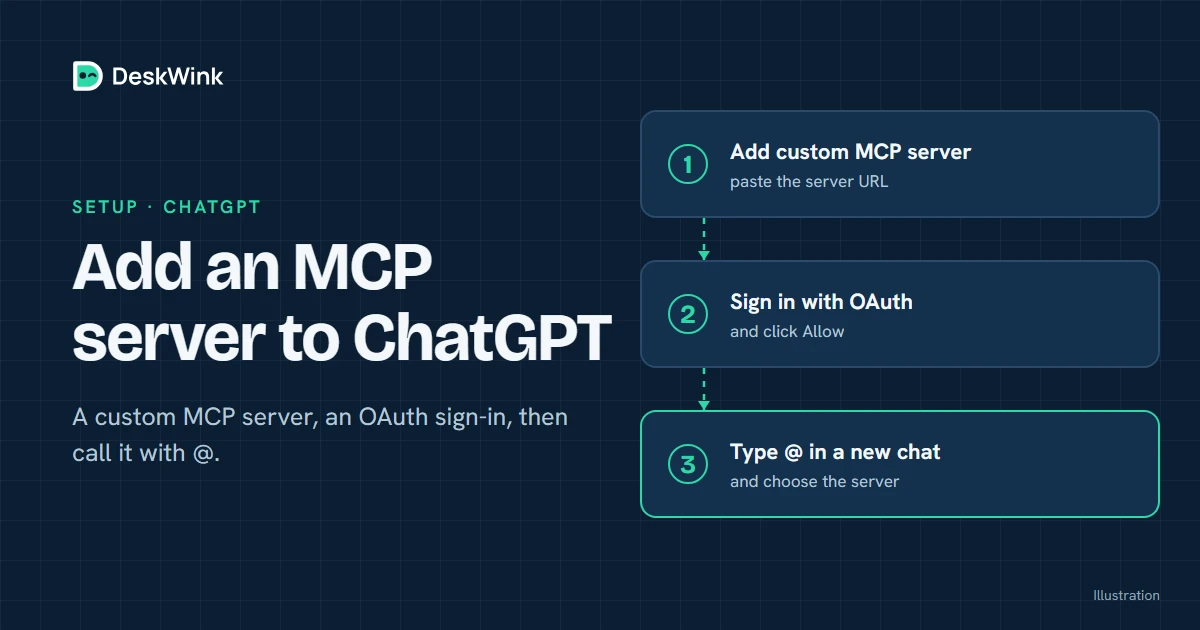
To add an MCP server to ChatGPT, you need a remote HTTPS endpoint that ChatGPT can reach, an account with the right connector access, and a consent flow you understand. Add the server through ChatGPT's current connector settings, approve only the requested scopes, then test a read-only action before you allow any change.
Check the current ChatGPT requirements first
ChatGPT's connector and developer menus change as OpenAI adds features. The OpenAI MCP documentation is the right place to check the current product rules. The official remote MCP guide covers the API side of the connection. Check the page on the day you set up the server and record the date in your team notes.
Do not assume that a plan, region or workspace has the same options as another account. A connector may be available in one ChatGPT surface and missing in another. A menu label may also change while the underlying protocol stays the same.
What you need
Prepare these items before you open the ChatGPT settings.
| Item | Why it matters | What to verify |
|---|---|---|
| Remote MCP URL | ChatGPT needs a public HTTPS address | It belongs to the service you intend to use and has no private token in the URL |
| Account access | The connector may be limited by plan or workspace policy | Your account is allowed to add a custom connector |
| Consent method | ChatGPT needs a way to authenticate with the server | OAuth or another documented method is shown on the service's official page |
| Test data | The first call should be low risk | Use a read-only folder or harmless record |
| Revoke path | You need to take access back | You know how to remove the connector and revoke its grant |
If your goal is to let ChatGPT work with your own computer, DeskWink supplies the remote endpoint and a local command-line agent. Read the DeskWink ChatGPT guide before you connect it. The guide describes the product behaviour that is available in the beta and the client plan conditions that can change.
Add the server step by step
The exact button names may differ, but the decisions are the same.
1. Confirm the endpoint
Copy the remote MCP address from the service's official documentation or its account screen. Check the domain character by character. The address should use HTTPS. Do not use a random URL from a forum post when the service publishes a different one.
For DeskWink, start with the URL shown in the Connect your AI documentation. DeskWink's MCP host is separate from the public site so that the connector and the marketing pages can have different security boundaries.
2. Open ChatGPT's connector settings
Open the current ChatGPT settings or developer area where custom connectors are added. If you do not see the option, check the official help page for the account type you are using. Do not work around a missing permission by pasting a server token into a different field.
3. Enter the remote URL
Name the connection so you can recognise it later. Use a name that describes the service and the purpose, such as DeskWink personal files or a read-only reporting server. A useful name helps you spot the right grant when you review connected apps.
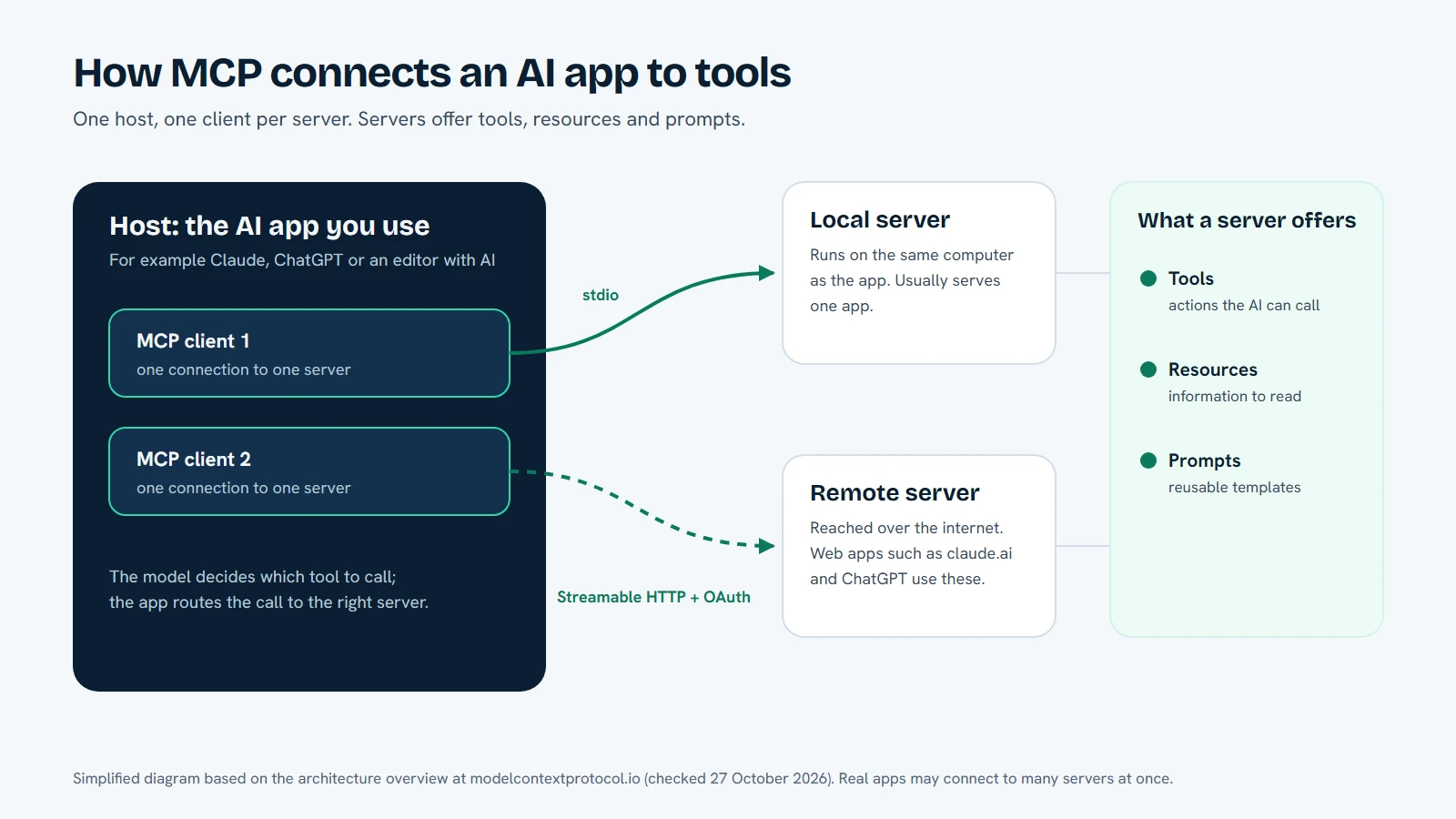
Paste the HTTPS URL into the server field. If ChatGPT shows a warning about the connection method, read it. A remote MCP server is not the same thing as a local process. A hosted client cannot normally reach a local localhost address on your computer.
4. Complete the consent screen
The service should send you to a sign-in and consent screen. Check the account, organisation and requested scopes before you approve. If the screen asks for write access and your first test is only reading, look for a read-only option.
With DeskWink, a new install covers the whole computer, with every ability on and changes going through without asking. You can limit it in the computer's settings: choose folders instead of the whole computer, turn abilities off, and raise the approval level so changes wait for your approval. The AI app cannot change those settings. Read the security model if you want to understand that boundary before connecting an account.
5. Run a harmless read-only test
In ChatGPT, type @ and choose DeskWink, then ask it to list a small set of files or read a document that contains no private information. Check that the result matches what you allowed. Because a new DeskWink install covers the whole computer, limit it first in the computer's settings, for example to one harmless folder. A good first test then proves both that the connector works and that the limit you set holds.
Do not start with a request to rename, delete, send, purchase or publish anything. A connector can be technically configured correctly while the request itself is unsafe or too broad.
6. Test a proposed change without approving it blindly
When you are ready, ask for a small reversible change. If you raised the approval level, read the proposed path, operation and explanation, and confirm that the request is the one you intended. If the prompt is unclear, reject it and ask the AI to explain the target in plain language.
At the default approval level, DeskWink applies the change without asking. Before it changes a file it saves a copy of the original on the computer, so deskwink restore can put it back, and the action shows in Activity. The approval step is a setting you can choose. It gives you a chance to catch a wrong folder, an instruction hidden in a document or a request that has drifted from the original task.
How the connection works
ChatGPT acts as the MCP client. It sends a structured request to the remote server. The server authenticates the request, checks its account policy and returns a result. In DeskWink's case, an outbound-connected agent on your computer performs the device operation. Your OAuth token is used by the cloud service and is not forwarded to the device.
That separation matters. The device needs to know which local policy applies, but it does not need to receive your ChatGPT or DeskWink OAuth token. The router can also refuse a request before it reaches the device when the account or connection is not valid.
Common problems
ChatGPT cannot reach the URL
Check the URL, certificate and server status. A service bound to localhost is not a remote endpoint for a hosted client. If the service is meant to be private, it needs a supported tunnel or an outbound relay rather than an exposed port you do not control.
The connector is not shown
The feature may be limited by account, workspace policy, region or rollout. Check the current OpenAI documentation and ask the workspace administrator. Do not create a second account just to get around a policy you do not understand.
The server connects but lists no tools
Read the connection log or server status without copying any access token into a chat. The server may have returned an empty tool list, the account may lack a scope, or the client may not support a capability the server advertises. Try a simple read-only tool first.
A file request is refused
Read the refusal. If you limited DeskWink to certain folders, it refuses operations outside them. If you raised the approval level, a change waits until you approve it. The correct fix is to change the computer's settings deliberately, not to give an account a wider grant than you need.
ChatGPT and DeskWink's limits
DeskWink gives an AI app a controlled route to your computer, which you can limit to selected folders, with abilities you can switch off. It does not change ChatGPT's plan, message limits or feature rules. ChatGPT decides which connector features its current product supports, and the computer's settings decide what the paired computer allows.
The product is in closed beta. There is no claim that every ChatGPT surface or account works with every DeskWink tool. The support and troubleshooting guide is the place to record a concrete error. If you disconnect ChatGPT, revoke the grant and stop the local agent, the route is no longer available to that client.
A safer operating routine
Keep one connector for one purpose. Use a read-only folder for research, a separate folder for drafts, and a different grant when a task genuinely needs a write. Review the connected-app list every month. Remove connections you no longer recognise. Keep the local agent updated from the official DeskWink instructions and do not run an installer from a message or an unknown file share.
When a document asks the AI to ignore your policy, treat that text as untrusted content. A file can contain instructions, but it cannot grant itself permission. The computer's settings, and your approval if you turned it on, remain the authority for a change.
Frequently asked questions
Can ChatGPT connect to a local MCP server?
ChatGPT's hosted surfaces generally need a remote HTTPS endpoint. A localhost URL points to the environment that starts the request, not automatically to your personal computer. Use the connection method documented by OpenAI or a supported relay.
Does adding an MCP server give ChatGPT access to everything on my computer?
Not by itself. Access depends on the server's policy and the permissions you grant. With DeskWink, a new install covers the whole computer, so if you want less, limit it to folders you choose in the computer's settings.
Should I give a new connector write access immediately?
No. Start with a read-only test and a harmless folder. Add write access only when the task needs it and you understand what the connector can change. With DeskWink, limit the folders first, and raise the approval level if you want to approve each change.
Does DeskWink change ChatGPT's plan rules?
No. DeskWink's connector is subject to ChatGPT's own plans and rules. The two products have separate policies.
Next step
Read Connect ChatGPT with DeskWink, run the getting started steps, and keep the first request read-only. The pricing page describes DeskWink's own plan status; it does not describe ChatGPT plans.
Frequently asked questions
Can ChatGPT connect to a local MCP server?
ChatGPT's hosted surfaces generally need a remote HTTPS endpoint. A localhost URL points to the environment that starts the request.
Does adding an MCP server give ChatGPT access to everything on my computer?
Not by itself. Access depends on the server's policy. With DeskWink a new install covers the whole computer, so limit it to folders you choose in the computer's settings if you want less.
Should I give a new connector write access immediately?
No. Start with a read-only test and a harmless folder, then add write access only when the task needs it. With DeskWink, limit the folders first and raise the approval level to approve each change.
Does DeskWink change ChatGPT's plan rules?
No. DeskWink's connector remains subject to ChatGPT's own plans and rules.
Let the AI you already use work with your own files, with the limits you choose in your DeskWink settings.