
MCP security risks: a practical checklist
Short answerUse this MCP security checklist to review identity, tools, permissions, data handling, prompt injection and revocation before connecting.
Written with AI assistance
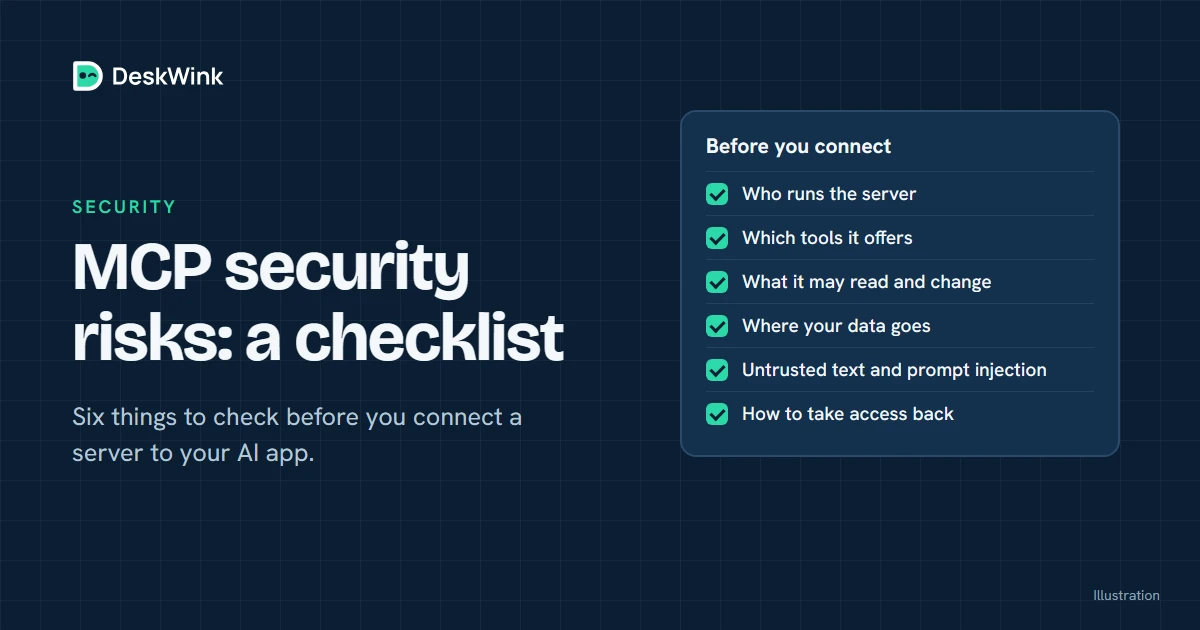
MCP security is a review of the whole connection, not a label attached to a server. Before you connect, check who owns the endpoint, which tools it exposes, what resources they can reach, how the AI is authenticated, what data is retained and how you revoke access. Start read-only and add capability only when the task needs it.
Why MCP security needs a checklist
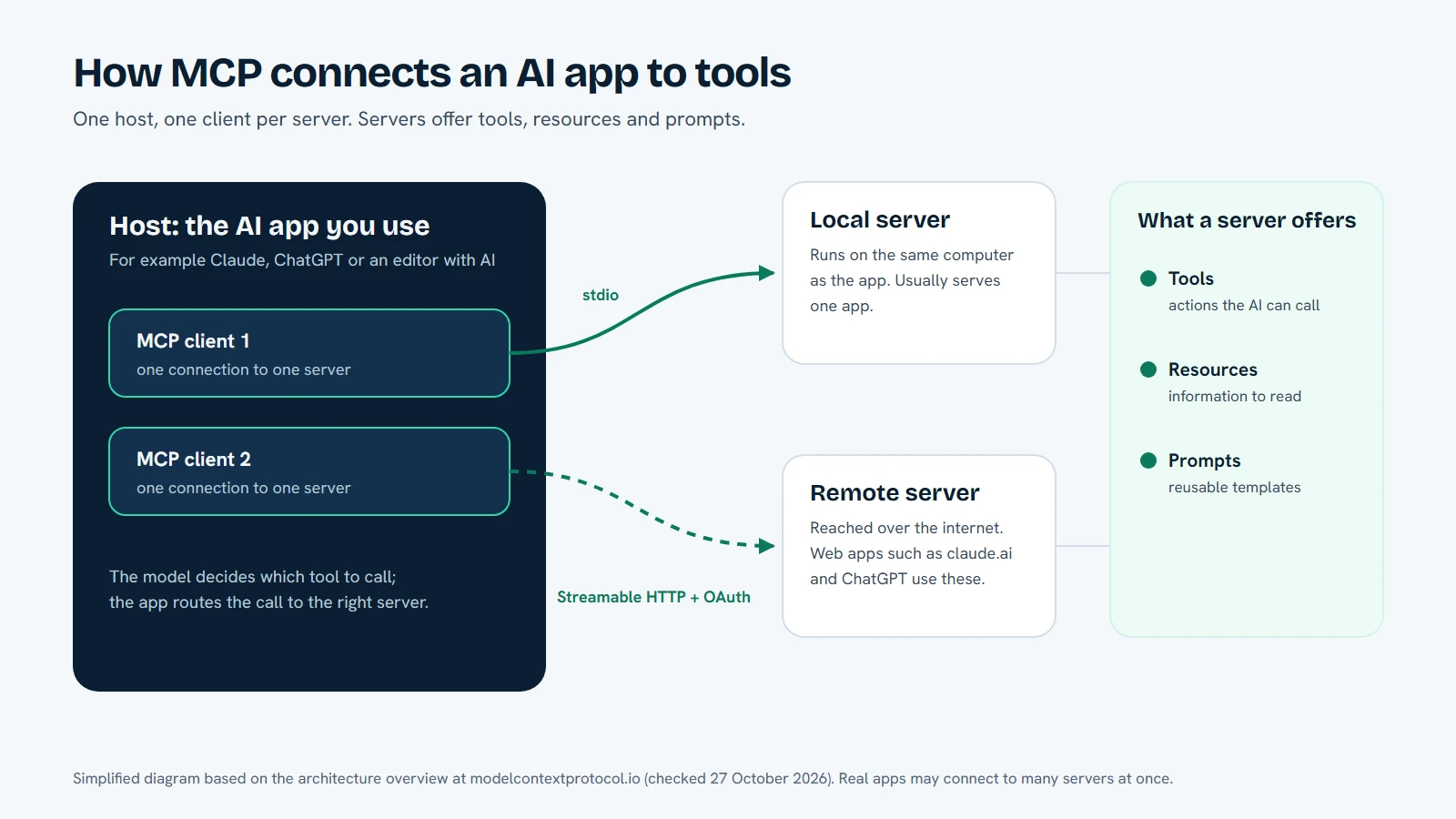
The Model Context Protocol standardises how an AI client discovers and calls tools. It does not decide whether a tool is trustworthy, whether a file path is allowed or whether a person must approve a change. Those decisions belong to the client, server, local agent and the policy around them.
That separation is useful. It lets different products use the same protocol. It also means a connection can look normal while the actual risk sits in a tool implementation, a consent screen, a local process or a data-retention policy.
The official MCP security documentation is the right place for protocol-level guidance. The checklist below turns the main review questions into actions you can repeat for a new server.
1. Confirm the server identity
Start with the address. Use the domain published by the organisation you intended to connect. Check the spelling, HTTPS certificate and sign-in host. A look-alike domain can collect a token or send you to a different consent page.
Read the service’s own documentation. It should tell you who operates the endpoint, what the server does, which clients it supports and how to contact the operator. If the only description is a copied tool list or a social post, treat the connection as unverified.
Identity also includes the client. The consent screen should name the AI app or connector that is asking for access. If the name, redirect or requested audience is unexpected, cancel the flow and check the vendor documentation.
2. Inspect the tools and their effects
Read the tool descriptions before you let a model call them. Separate read, write, command, browser and desktop capabilities. A tool that looks like “update” may change a record. A tool that lists files may still return sensitive contents.
Ask four questions for every tool:
- What does it read?
- What does it change?
- Which account or process performs the action?
- Can a person see and reject it before it runs?
Do not enable a broad tool because the client lists it. Start with the smallest capability that can answer the first test question. If you need a write later, add it deliberately and test it on a disposable folder or record.
3. Keep resource scope narrow
The difference between one folder and a whole computer matters. A server should receive the minimum root, project, table or workspace needed for the task. Avoid sharing directories that contain tokens, private keys, browser profiles, credential stores, backups or unrelated personal files.
A read-only grant limits writes, but it does not hide the contents of a file that the AI asks the server to read. The AI provider receives the result under its own terms. Decide whether the file belongs in the prompt at all.
For a local server, review the operating-system account and the command that starts it. For a remote server, review the account policy, the device mapping and the server’s own access checks. A remote URL does not remove the need for a local boundary when the resource is your computer.
4. Understand authentication and scopes
OAuth can give a client a short-lived, revocable grant instead of a copied long-lived secret. It still needs review. Read the scopes in the consent screen. A scope that says “write” or “manage” deserves a concrete explanation.
Do not paste an access token into a chat or a random form because a setup guide asks for it. Use the provider’s supported sign-in flow. Keep client, resource and authorization-server roles clear, and know where a grant is listed after you approve it.
If the service uses an API key or a static secret, treat the key as a credential with the full authority of the server. Store it in the client’s secret store, restrict its scope and plan a rotation. Never put it in a public issue, screenshot or blog post.
5. Defend against prompt injection and tool poisoning
An AI can receive instructions from files, web pages, tool descriptions and tool results. Those instructions may be useful data, or they may try to make the model ignore your request. Tool poisoning is one way this can happen: a description or result contains instructions that steer a model toward an unsafe action.
Use a clear separation between data and commands. Treat text returned by a file or website as untrusted content. Keep destructive actions behind a human approval point. If a tool result tells the model to reveal a secret, disable a protection or send data elsewhere, stop and inspect the request yourself.
The safest test prompt is small and observable. Ask the AI to list a harmless folder or explain a document, then review the exact tool call. Do not start with a purchase, account change, command shell or bulk write.
6. Check retention and data flow
Find out what the service stores. The answer should distinguish file contents, tool arguments, tool results, account metadata, timestamps, audit events and error logs. “We do not train on your data” does not mean “we store nothing”.
The AI provider has its own data handling rules. If the server returns a file, the provider receives that text. If the tool opens a browser page, content from that page may be returned to the model. Map the flow before you connect a sensitive source.
DeskWink’s public product and privacy docs say that file contents and diffs are not stored in its database or logs. Account, device, folder policy, connection and security-event metadata still exist so the service can run and be audited. Check the Privacy Policy and security model for current details.
7. Practice revocation and recovery
An integration is not complete until you know how to turn it off. Test each layer:
- Disconnect the AI client or remove the connector.
- Revoke the OAuth grant or rotate the static key.
- Stop or kill the local agent.
- Remove the device pairing or folder root.
- Confirm that a pending request is refused.
Record the order in your team notes. If you cannot find the grant later, the connection is not ready for sensitive data.
How DeskWink applies the checklist
DeskWink is designed to keep identity and policy decisions on the service and the paired device. The AI client connects to a remote MCP endpoint. The cloud router derives the account and workspace server-side, then routes a request to the paired computer over an outbound connection.
The settings live on the computer, and you can change them. A new install starts with the whole computer, every ability (files, commands, the browser through the extension, and desktop control and the clipboard on Windows) and changes going through without asking, with no time limit. That is a wide default, so apply the checklist right after pairing.
In the computer's settings, on the website or on the computer, you can choose folders instead of the whole computer, turn abilities off, and raise the approval level so changes wait for your approval. Narrowing is always allowed. The website can widen a computer only when website settings are on for it, after a recent sign-in, with a security event and an email to the account. No MCP tool can do either.
Before DeskWink applies a file change it saves a copy of the original on the computer, so deskwink restore can put it back, and every action shows in Activity. DeskWink does not claim that MCP itself makes a computer safe; the product boundary is the combination of scope, approval, authentication and revocation.
The product is in closed beta. The security model describes the current protection and its limits. The getting started guide shows the first local setup. Read both before you connect a real project folder.
What this checklist cannot prove
A checklist cannot prove that an implementation has no bugs, that a model will never be manipulated or that an AI provider will keep the same policy forever. It helps you ask the questions that determine whether a connection is appropriate for one task.
Escalate when the resource is regulated, belongs to someone else, or would cause serious harm if changed. Keep a person responsible for final purchases, account recovery, legal acceptance and other irreversible actions.
Questions for a team review
Use the same questions when a teammate proposes a new server. Who approved the vendor and who can remove it? Which exact folder, account or workspace is in scope? Which tool can write, execute or send data? What does the consent screen show, and where is the grant recorded? Which logs contain identifiers or error details, and how long do they remain? What is the test request that proves a revoked connection is refused?
Write the answers beside the connection owner and review date. A short record creates a useful handoff when the original setup author leaves the project. Recheck it after a provider changes its connector UI, after a server adds a tool or after the team changes the folder root. Security is a continuing operating decision, so the checklist should live near the integration configuration rather than in a one-time launch note.
What to do next
Start with the MCP connection guide, then choose the Claude guide or ChatGPT guide. Use a disposable folder, read-only access and one low-impact request. Add write access only when the result and approval path are clear.
Frequently asked questions
Are MCP servers secure by default?
No. Security depends on the server’s identity, tool permissions, resource scope, authentication, data handling and recovery path.
Can an MCP server read my whole computer?
Only if the host or local policy gives it that access. Start with one harmless folder and read-only operations.
What is tool poisoning?
It is a class of prompt-injection risk where instructions in tool descriptions or returned content try to steer a model into an unsafe action.
How does DeskWink reduce MCP risk?
DeskWink derives identity server-side and never forwards your OAuth token to the computer. A new install covers the whole computer, so you can limit folders, turn abilities off and raise the approval level in settings. Every action shows in Activity.
Let the AI you already use work with your own files, with the limits you choose in your DeskWink settings.